Documentation
Everything you need to know about inxdays — creating reminders, understanding Reverse Spacing, managing notifications, and using the API.
Getting Started
inxdays helps you remember what matters without the hassle of managing calendars or setting alarms. The workflow is simple: create a reminder, pick a date, and we handle the rest.
1. Create an Account
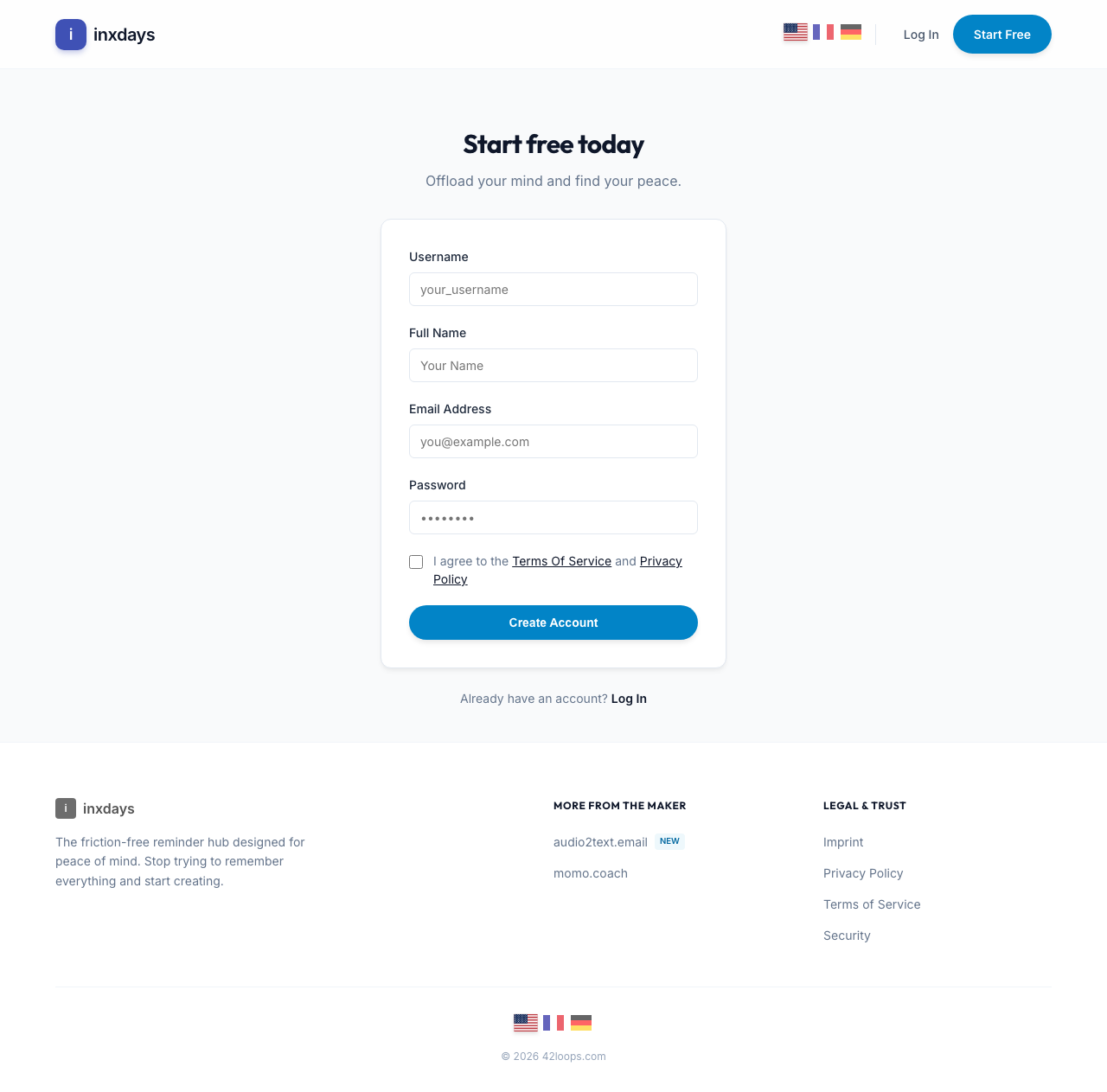
Sign up at inxdays.com. Your free account includes unlimited reminders and email notifications — no credit card required.
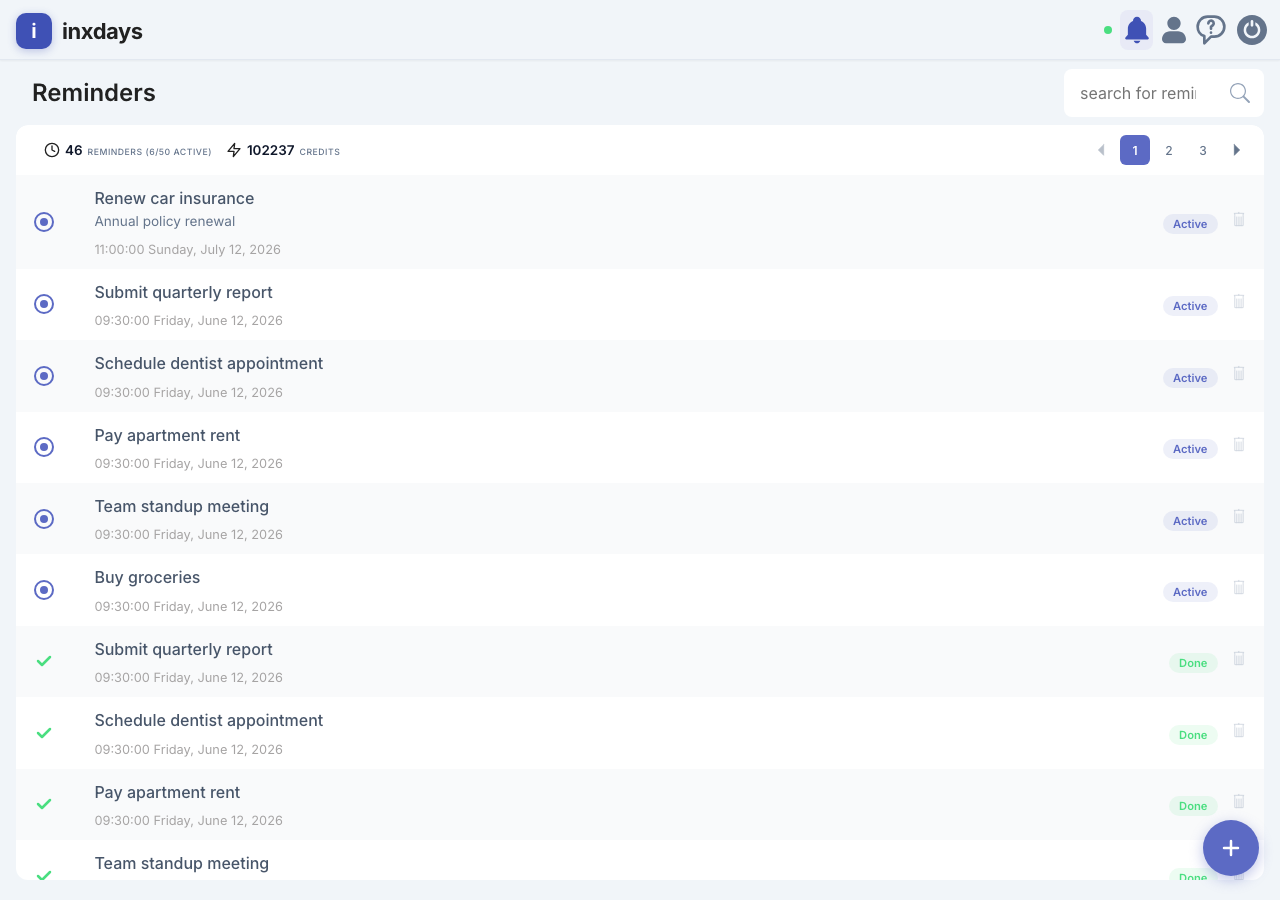
After logging in, you'll see your dashboard — a list of all your reminders sorted by event date.
Reminder Statuses
- Active — The reminder is live. Notifications will be sent at the dates calculated by the Reverse Spacing algorithm.
- Completed — All scheduled notifications have been sent. The reminder stays in your dashboard for reference.
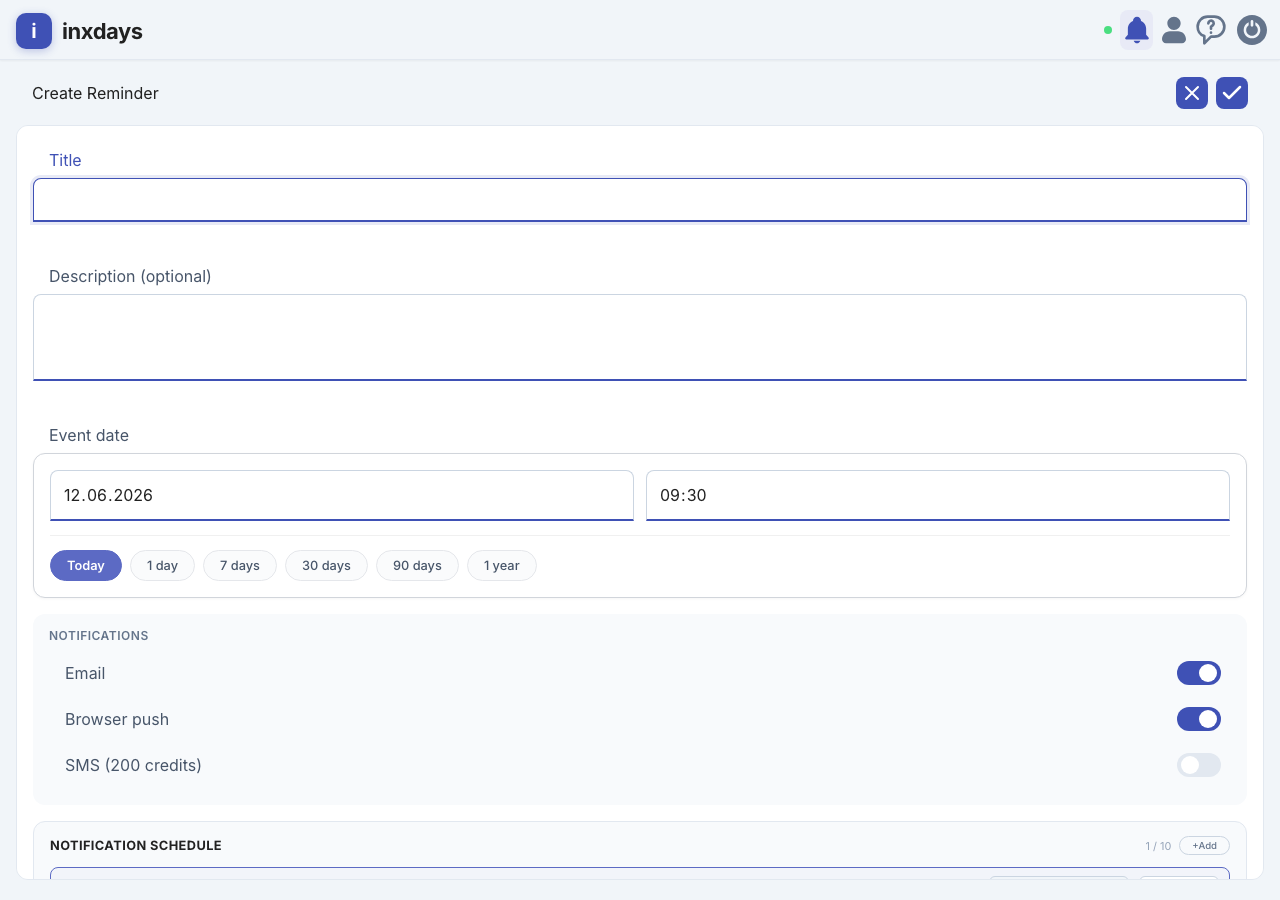
Click "+ New Reminder". Fill in:
- Title — what you need to remember (required)
- Description — any additional details (optional)
- Date — the event date
inxdays proposes a default schedule based on Reverse Spacing. You can immediately adjust it by adding, removing, or moving notifications before saving, or modify it later from the reminder detail view.
2. Customize the Notification Schedule
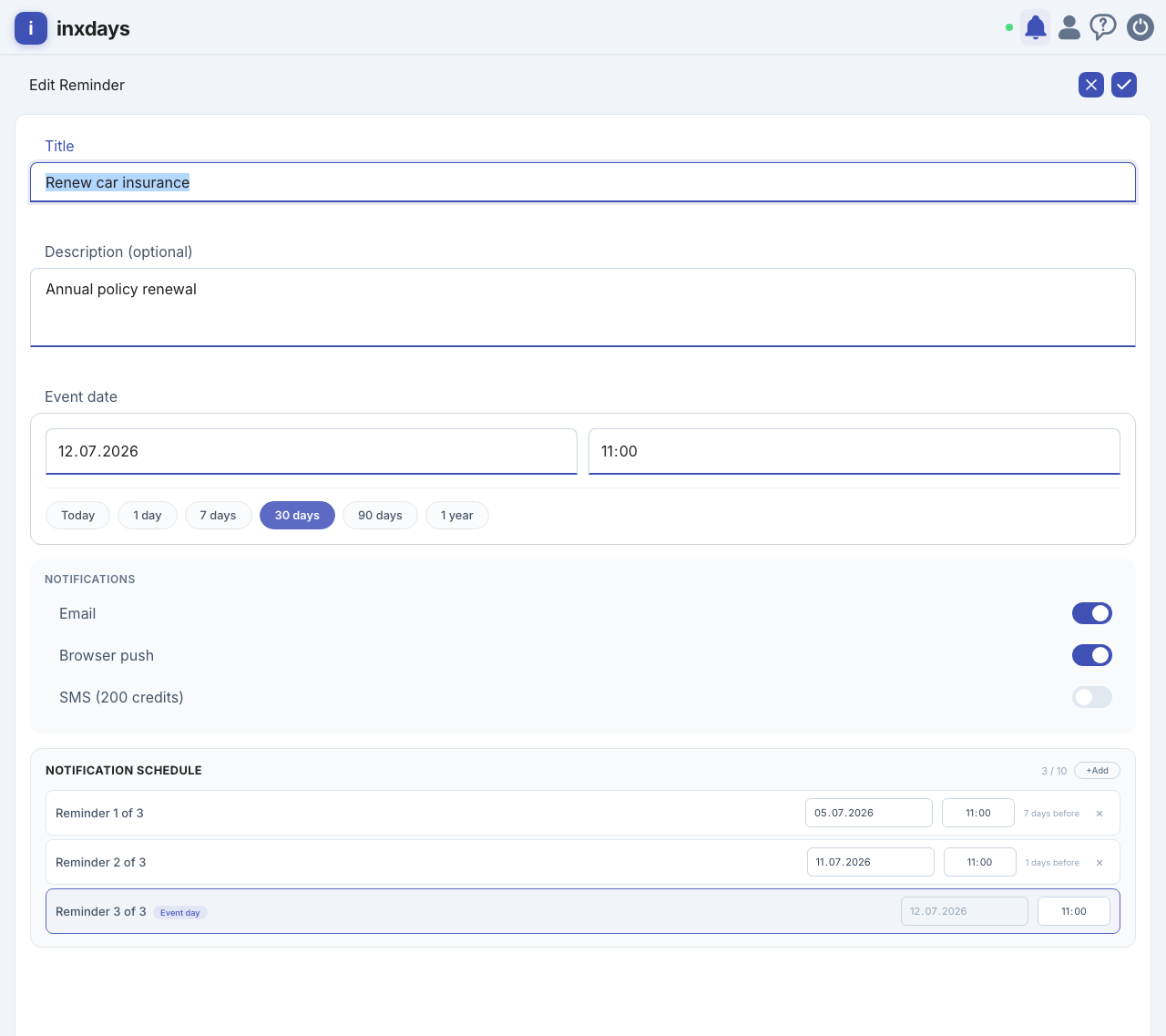
You can customize the notification schedule at two points: before saving the reminder (right after filling the creation form) or after creation from the detail view. In both cases:
- Add a notification — up to 10 total. The system picks a free date automatically.
- Change the date of any notification except the last one (event day).
- Change the time of each notification (default 09:30).
- Remove any notification except the last one (minimum 2).
The last notification is always on the event day. If SMS is enabled, the SMS is sent only for this final notification.
Hit save. inxdays automatically calculates the notification schedule using Reverse Spacing.
Managing Reminders
Viewing Your Reminders
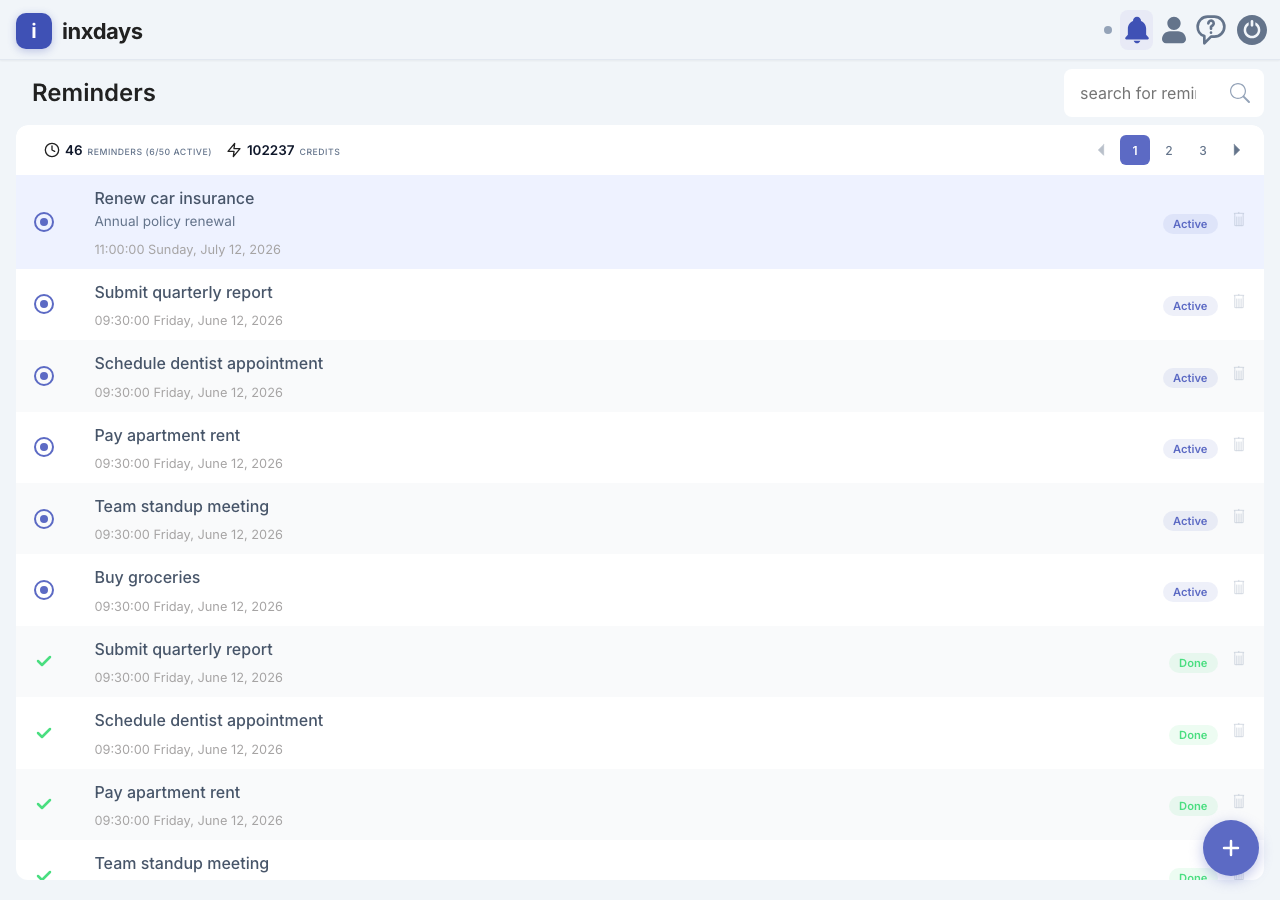
The dashboard lists all your reminders, sorted by date (earliest first). You can search for a specific reminder using the search bar at the top.
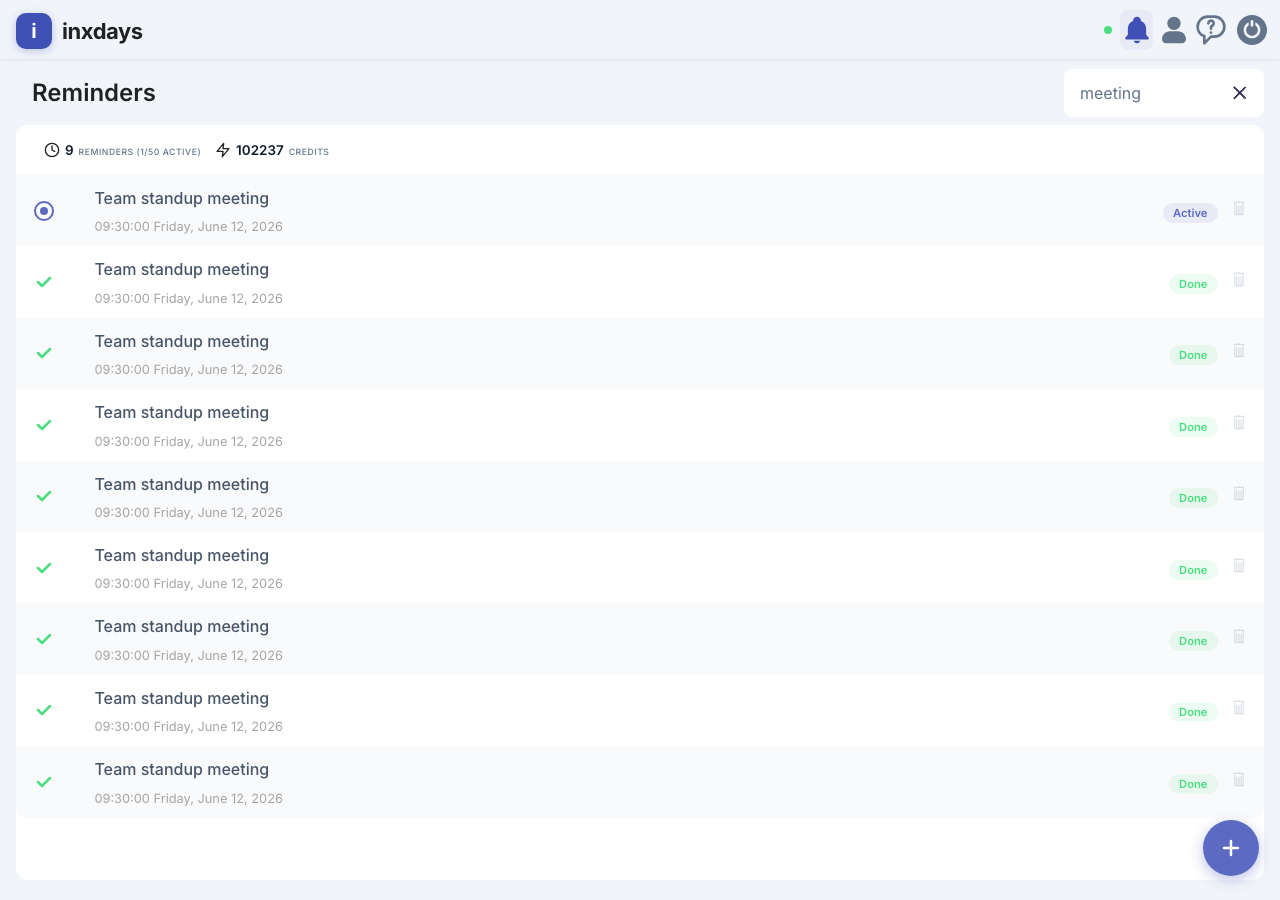
Click on any reminder in your list to open its detail view. Here you can change the title, description, date, or toggle individual notification channels (Email, Push, SMS). You can also customize the notification schedule.
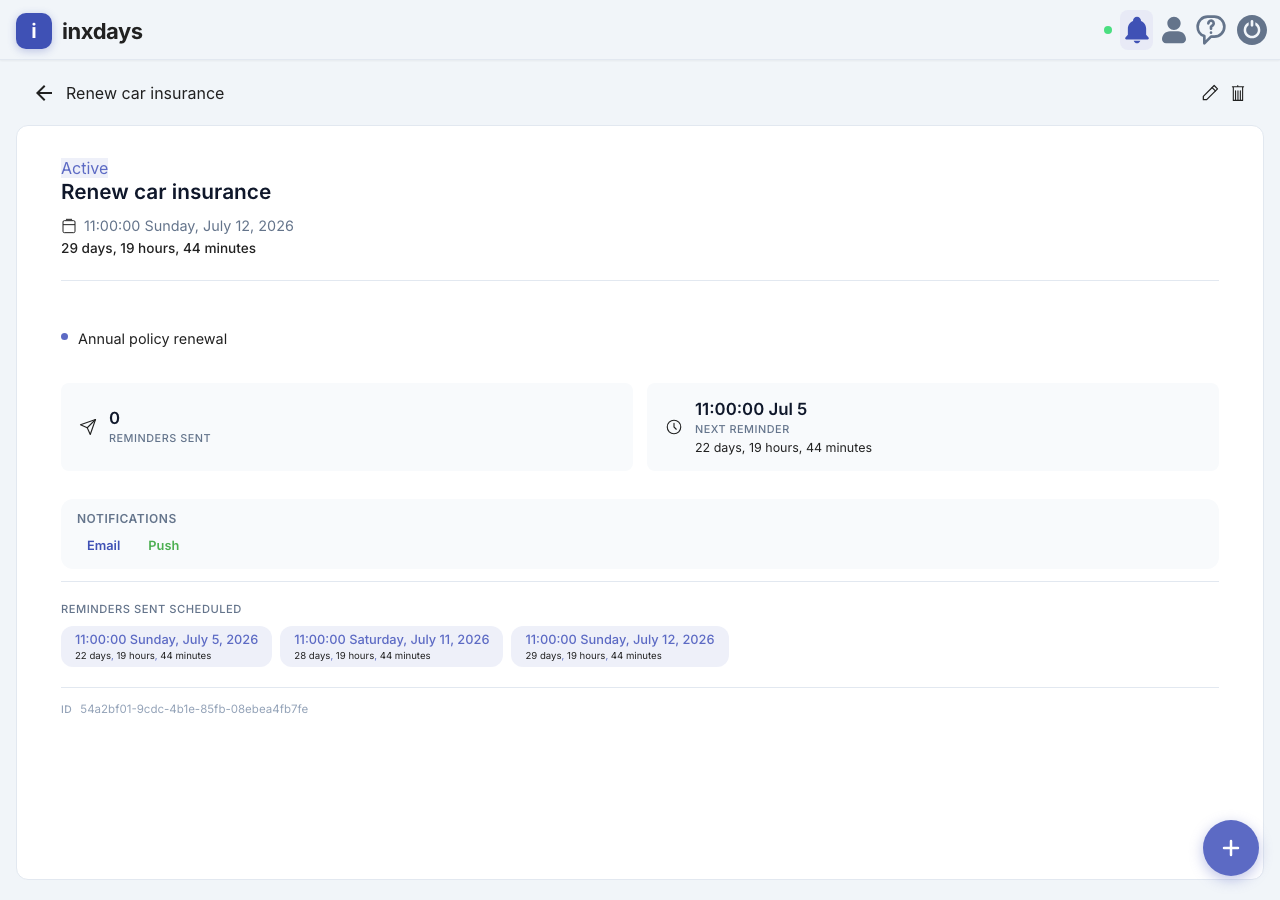
From the reminder detail view, scroll down and click "Delete". After confirmation, the action is immediate and irreversible — all scheduled notifications for that reminder are cancelled.
Reminder Statuses
Each reminder has one of two statuses visible in the dashboard:
- Active — The reminder is live. Notifications will be sent at the dates calculated by the Reverse Spacing algorithm.
- Completed — All scheduled notifications have been sent. The reminder stays in your dashboard for reference but no longer triggers notifications.
How It Works — Reverse Spacing
inxdays uses an algorithm called Reverse Spacing to determine the optimal notification schedule for each reminder. Instead of a single alarm, you get multiple reminders spaced intelligently before your event.
The principle is simple: the closer your event date, the more frequent the reminders. The further away, the more spaced out — so you're never reminded too early or too late.
| Time until event | Notification schedule |
|---|---|
| Less than 7 days | 1 day before, day of event |
| 7 – 30 days | 7 days, 1 day, day of event |
| 30 – 90 days | 30 days, 7 days, 1 day, day of event |
| More than 90 days | 90 days, 30 days, 7 days, 1 day, day of event |
For example, if you set a reminder for "Renew insurance" 60 days from now, you'll be notified at 30 days, 7 days, 1 day, and on the event date itself. You're always in the loop without being spammed.
Customizing Your Schedule
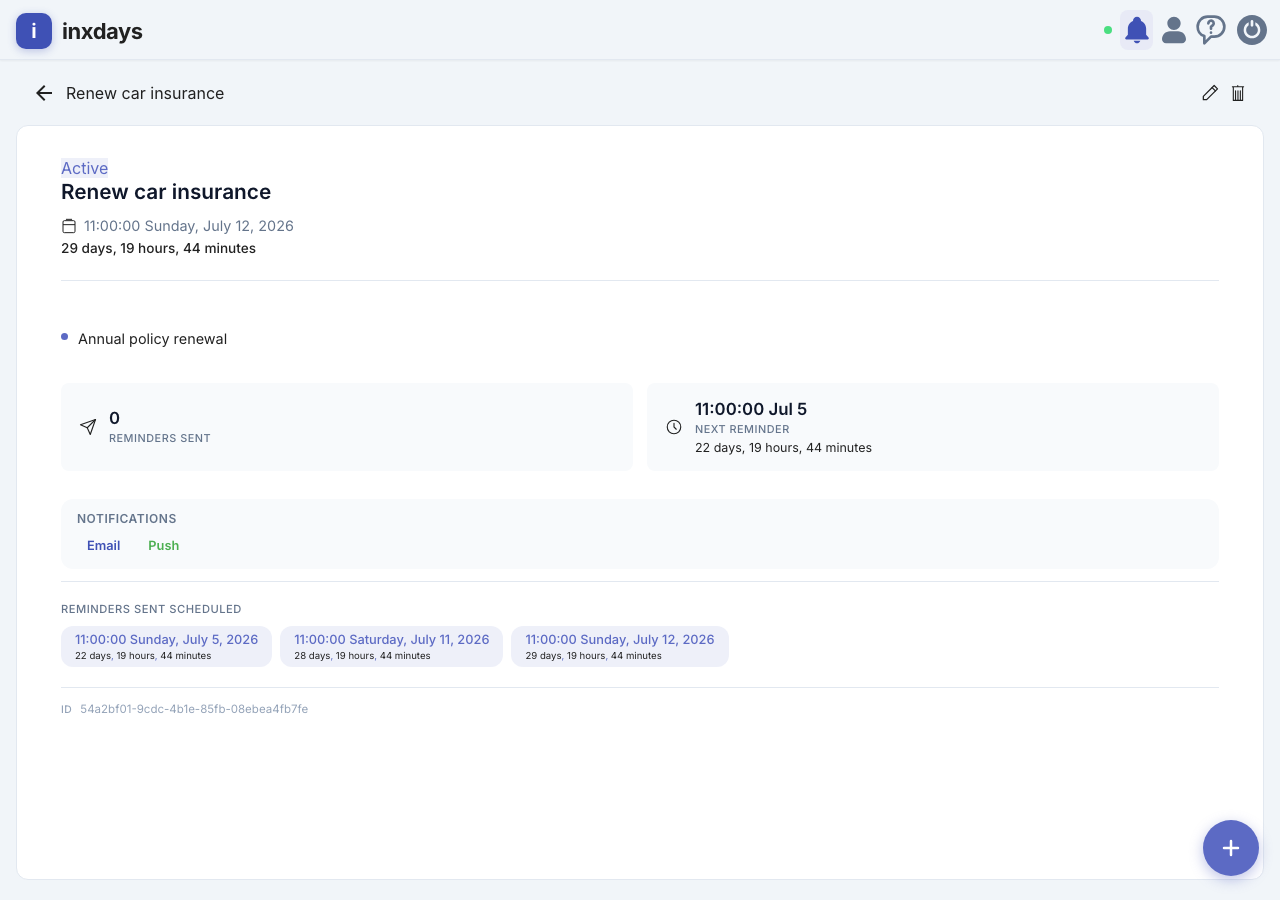
The Reverse Spacing schedule is a smart starting point, but you can adjust it to fit your workflow. From the reminder detail view, use the notification schedule editor to:
- Add notifications — up to 10 per reminder.
- Change dates — pick any date before the event day.
- Change times — set a custom time for each notification.
- Remove notifications — minimum 2, the event day notification cannot be removed.
These customizations help inxdays learn what works best for you, so the algorithm can improve over time.
Notifications
inxdays supports three notification channels. You can enable or disable each channel globally in your settings, or per reminder in the detail view.
Email notifications are always on and always free. Every reminder triggers email notifications according to the Reverse Spacing schedule. No setup required — emails are sent to the address you used to create your account.
Push Notifications
Browser push notifications deliver reminders directly to your device, even when the browser is closed. They work in Chrome, Firefox, Edge, and Safari on desktop, Android, and iOS.
How to enable:
- Go to Settings → Notifications
- Click "Enable Push Notifications"
- Allow the browser permission when prompted
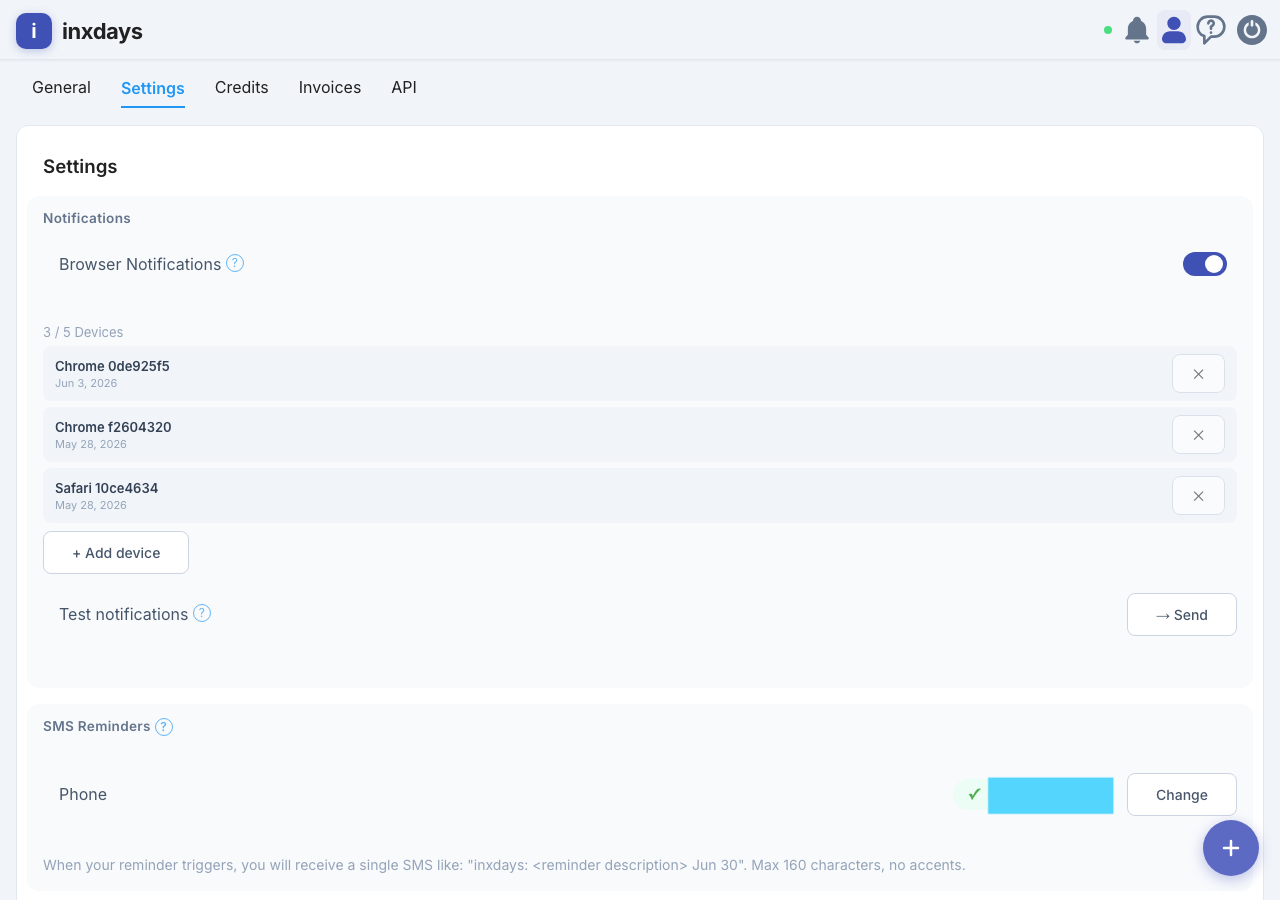
- Free and unlimited
- Works across multiple devices (up to 5)
- Active device indicator shows which browser is subscribed
SMS
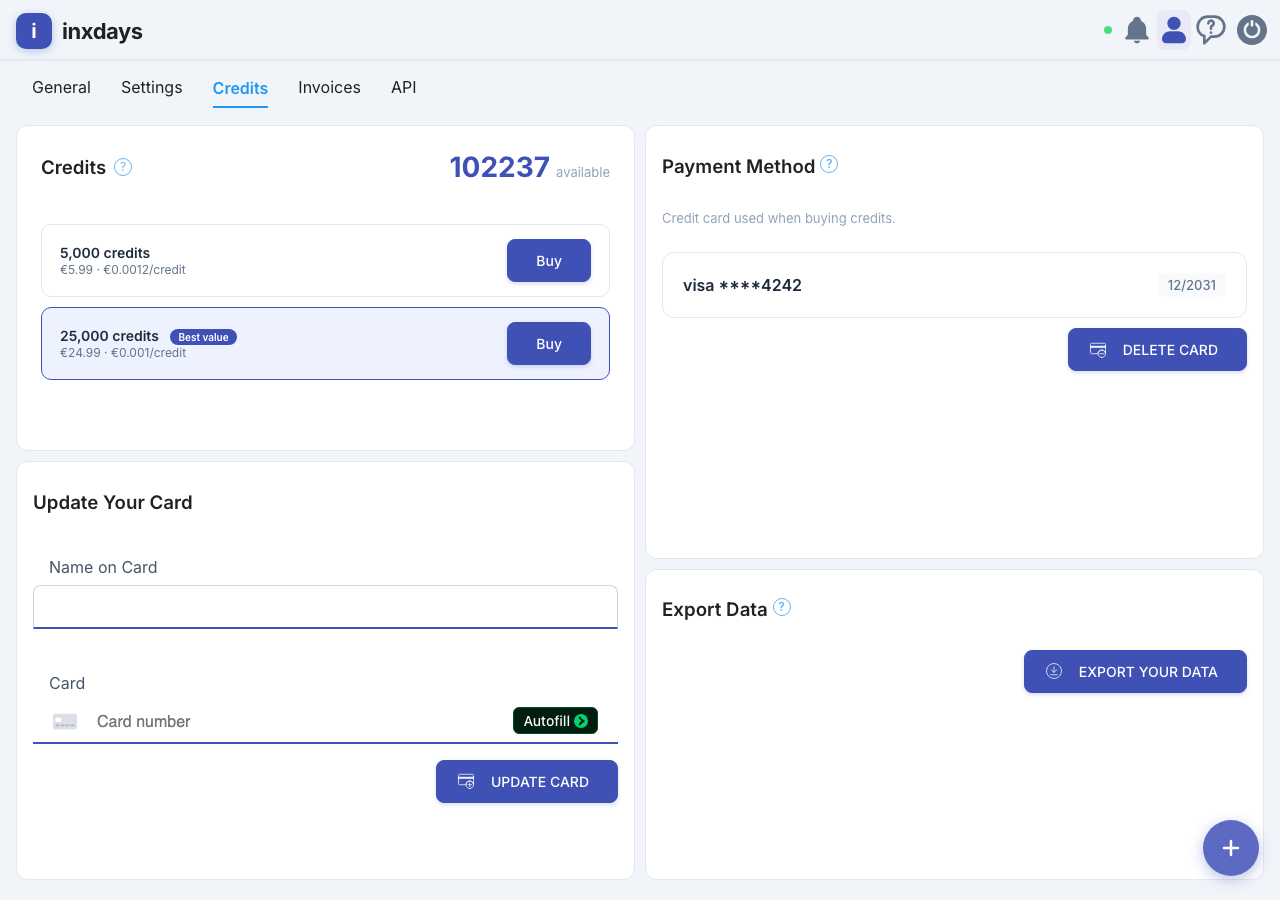
SMS notifications send a text message to your phone. Each SMS costs credits, which you can purchase in Settings → Credits.
Supported countries: France, Germany, Switzerland. More countries will be added as we grow.
How to set up:
- Enter your phone number in Settings → Settings (Notifications section)
- Buy credits in Settings → Credits
- Enable SMS for your reminders
User Settings
General
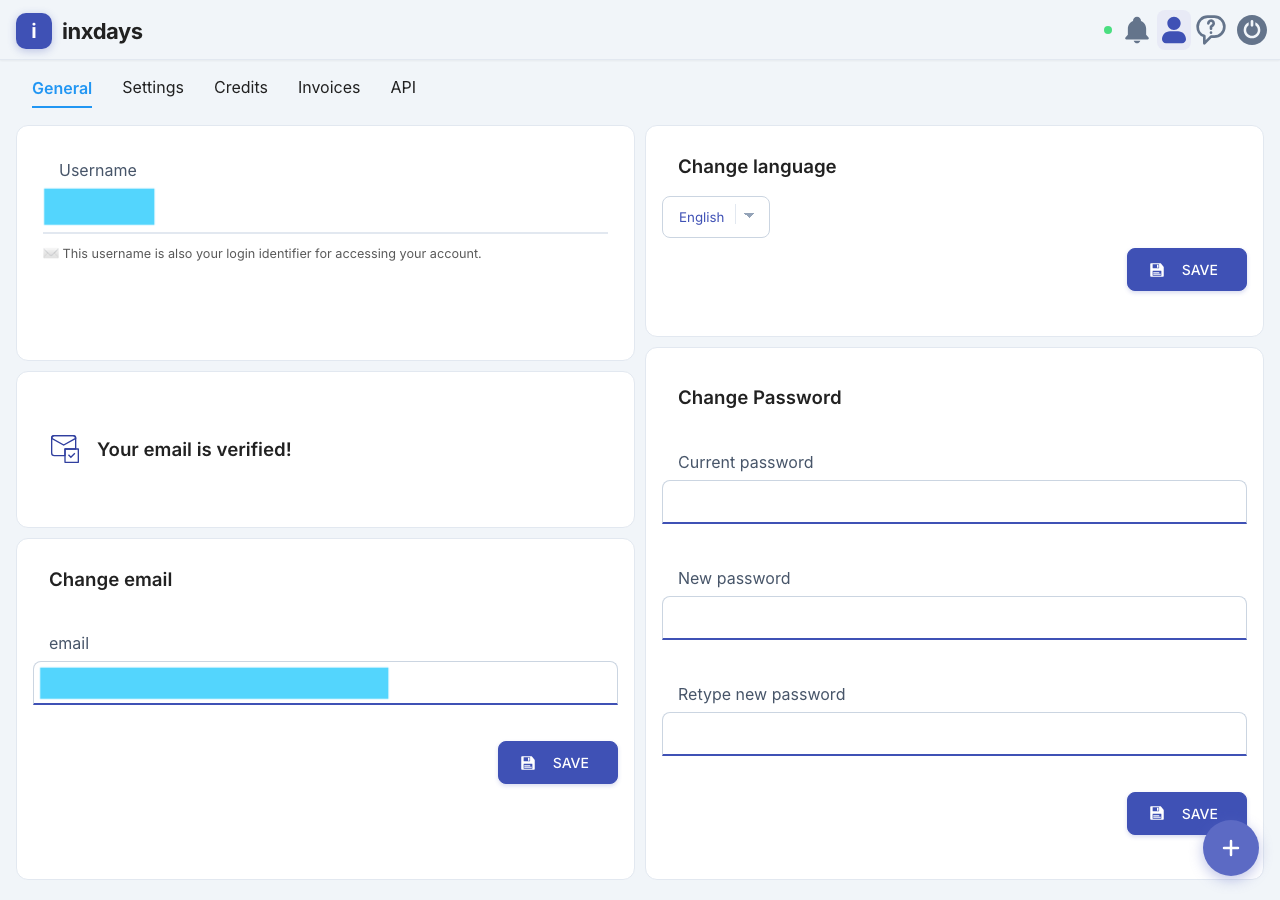
In Settings → General you can manage:
- Your name and email address
- Your password
- Your preferred language (French, German, English)
In Settings → Notifications you can:
- Enable or disable push notifications
- Manage your subscribed devices (up to 5)
- Remove old or unused devices
- Set your phone number for SMS notifications
In Settings → Credits you can purchase credit packs for SMS notifications. Your purchase history and invoices are available in Settings → Invoices.
API Access
inxdays provides a REST API so you can create and manage reminders programmatically. The full API reference is available on the API Documentation page.
Creating API Keys
Go to Settings → API Keys to generate your keys. You can have up to 5 API keys at any time. Each key is identified by a name you choose and a unique ID.
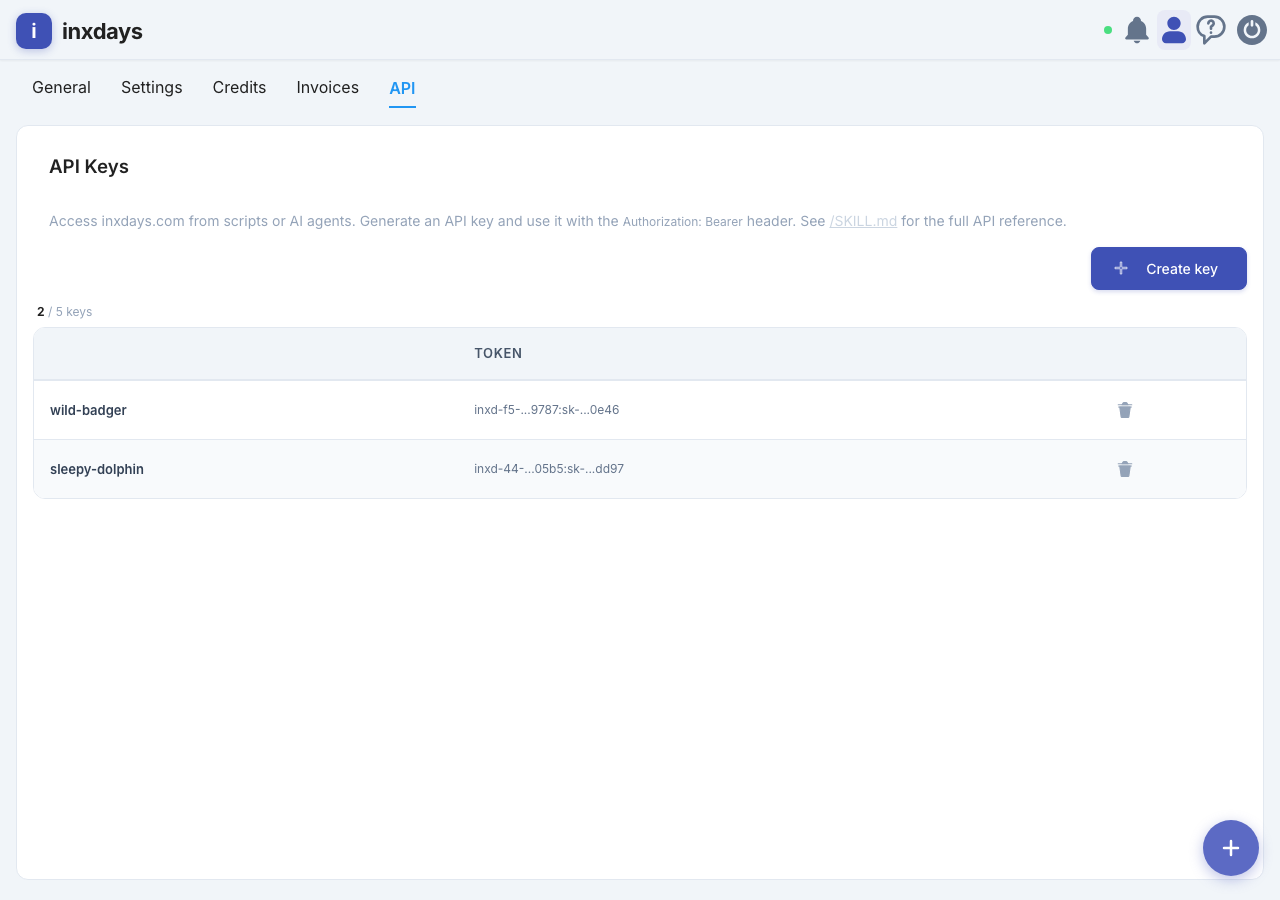
Include your API key in the Authorization header of each request:
Authorization: Bearer <your-client-id>:<your-secret-key>
Quick Example
Create a reminder via the API:
curl -X POST https://api.inxdays.com/api/v3/reminders \
  -H "Authorization: Bearer $API_KEY" \
  -H "Content-Type: application/json" \
  -d '{
    "title": "Renew domain",
    "description": "My website domain expires",
    "eventDate": "2026-08-15"
  }'
Changelog
Initial Release
- Create reminders with title and description
- Reverse Spacing algorithm for optimal notification timing
- Email and Push notifications
- Multi-device push subscription management
- API access with API keys (5 per user)
- User settings (general, notifications, credits)
- Available in French, German and English